
Overview
Issues can be used to document tasks, notes, or conflicts directly in the model and assign them to project participants for resolution.
When creating an Issue, big automatically saves:
- Camera position
- Viewing direction
- Section plane
- Snapshot of the model view
- Optionally selected building components
This allows a task to be precisely located within the model.
Creating a Task in the Model
1 Select the Model Position
Navigate in the model to the location where you want to document a task or note.
Optionally, you can select one or more building components to associate with the Issue.
2 Create an Issue
Click “Create Issue”.
This can be done via:
- the Issue panel on the left
- the toolbar in the model
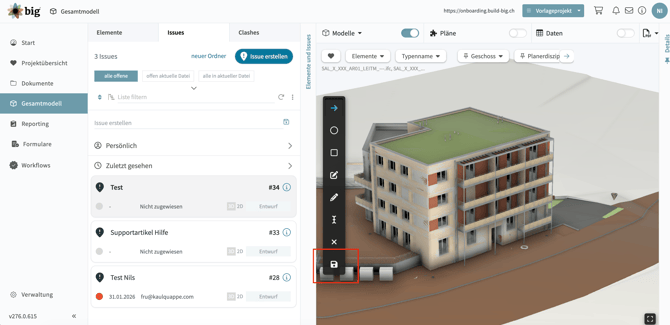
3 Place an Annotation in the Model
After starting the Issue, you can place annotations directly in the model, for example:
- Text
- Arrow
- Circle
- Freehand drawing
These markings are saved in the Issue snapshot.
4 Add a Title and Description
Next, enter a title for the task.
Then click Save:
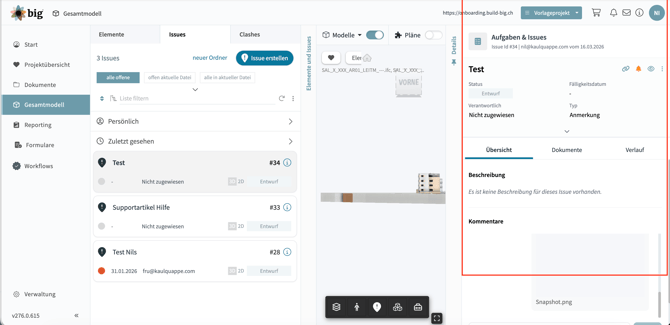
After saving, you can optionally add:
- Description
- Responsible person
- Priority
- Due date
Tip
The more precisely the model view is positioned when creating the Issue, the easier it is for other project participants to understand and follow up on the task.